Introduction to MS Windows
What is MS Windows?
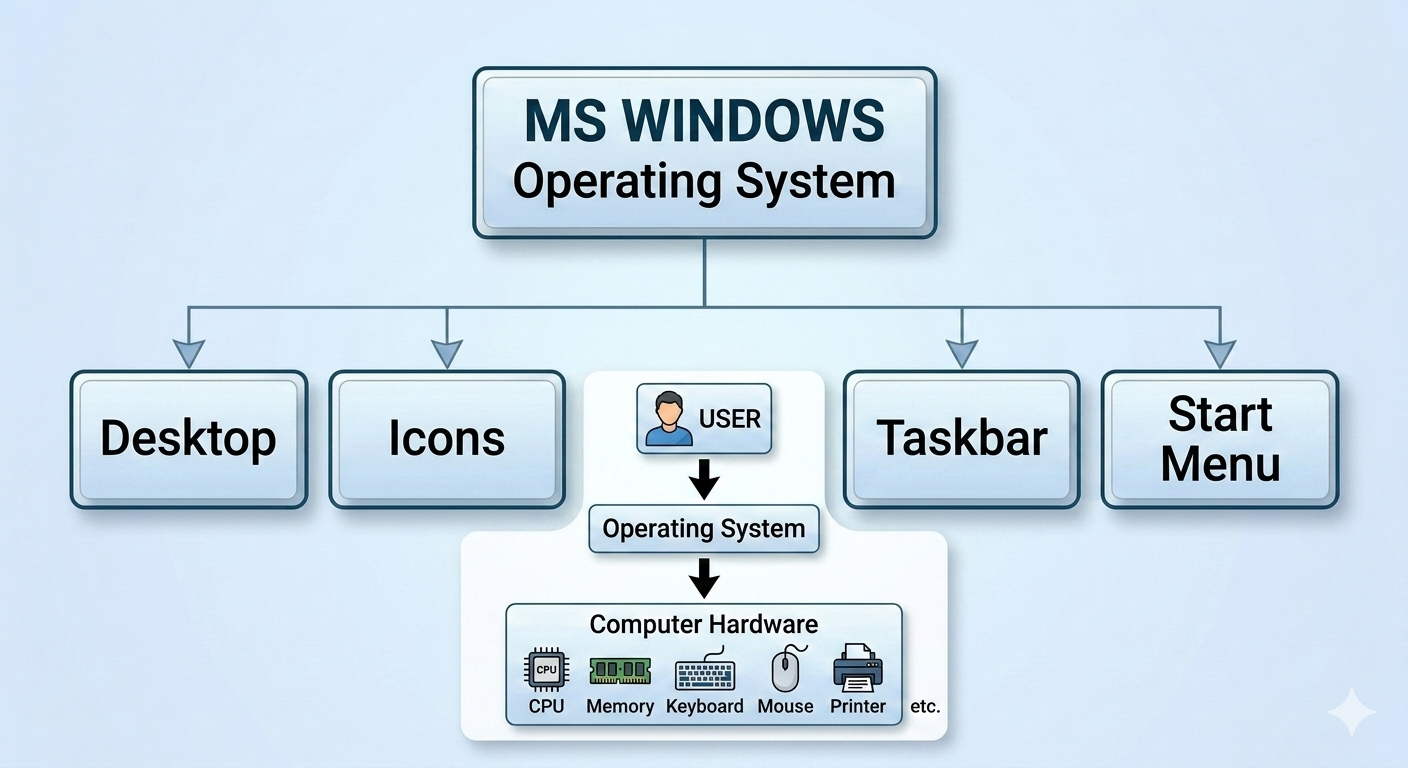
MS Windows (Microsoft Windows) is a Graphical User Interface (GUI)-based Operating System developed by Microsoft. It enables users to interact with a computer using windows, icons, menus, and a mouse instead of typing commands.
MS Windows manages computer hardware, software, files, memory, and connected devices, making the computer easy to use.
Popular Versions of MS Windows
- Windows XP
- Windows 7
- Windows 8 / 8.1
- Windows 10
- Windows 11
Advantages of MS Windows
- Easy to learn and use
- User-friendly graphical interface
- Supports multitasking
- Compatible with a large variety of software and hardware
- Excellent multimedia and networking support
- Automatic updates and security features
Disadvantages of MS Windows
- Requires more memory and storage
- Paid operating system (licensed)
- More vulnerable to viruses and malware
- Updates can sometimes slow the system
- Higher hardware requirements than some other operating systems
Introduction to Operating System (OS)
What is an Operating System?
An Operating System (OS) is system software that acts as an interface between the user and the computer hardware. It controls and manages all the hardware and software resources of the computer. Without an operating system, a computer cannot function properly.
Basic Functions of an Operating System
1. Process Management
- Manages running programs.
- Allocates CPU time to different applications.
Example
Running MS Word and a web browser simultaneously.
2. Memory Management
- Allocates and deallocates RAM.
- Ensures efficient use of memory.
3. File Management
- Creates, stores, copies, moves, renames, and deletes files and folders.
4. Device Management
- Controls hardware devices such as printers, keyboards, scanners, and USB drives.
5. Security Management
- Protects data using passwords and user accounts.
- Prevents unauthorized access.
6. User Interface
- Provides Graphical User Interface (GUI).
- Allows users to interact easily with the computer.
7. Multitasking
- Runs multiple programs simultaneously.
8. Error Detection
- Detects hardware and software errors.
- Helps recover from failures.
Desktop
What is Desktop?
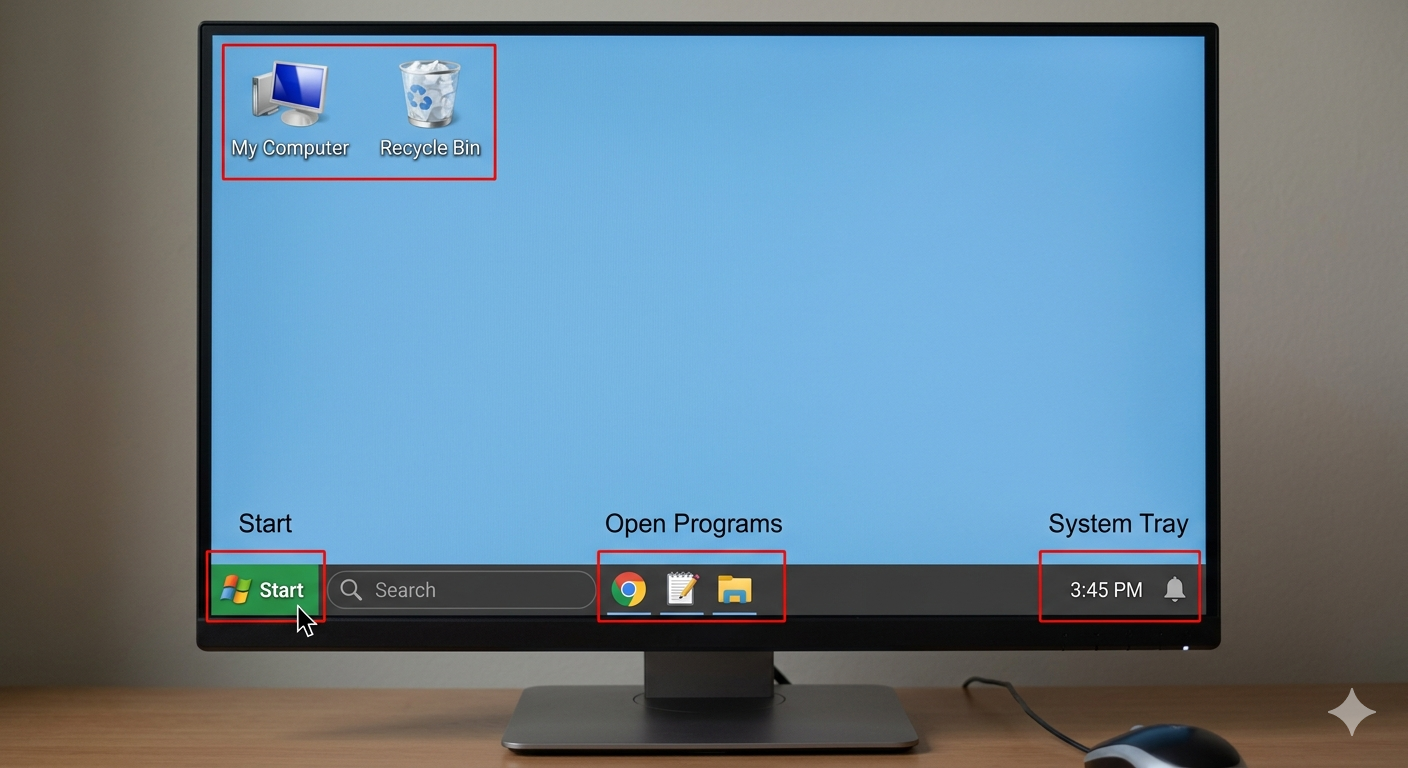
The Desktop is the main screen that appears after Windows starts. It contains icons, the taskbar, and the desktop background (wallpaper). It acts as the user’s main workspace.
Advantages of Desktop
- Easy access to files and applications
- User-friendly interface
- Customizable appearance
- Quick navigation
Disadvantages
- Too many icons can make it cluttered
- Uses system resources for wallpapers and widgets
- Accidental deletion of desktop shortcuts
Icons on the Desktop
What are Icons?
Icons are small graphical symbols representing files, folders, applications, or system resources.
Double-clicking an icon opens the associated program or folder.
1. This PC (My Computer)
This PC (called My Computer in older Windows versions) provides access to:
- Hard Disk Drives
- USB Drives
- DVD Drives
- Files and Folders
- System Information
Uses
- Browse files
- Manage storage devices
- View system properties
Advantages
- Easy file management
- Quick access to drives
- Organizes storage
Disadvantages
- Deleting system files accidentally can affect the computer
2. Recycle Bin
The Recycle Bin temporarily stores deleted files.
Files can be restored unless the Recycle Bin is emptied.
Uses
- Recover accidentally deleted files
- Permanently delete unwanted files
Advantages
- Prevents accidental data loss
- Easy file restoration
Disadvantages
- Occupies disk space until emptied
- Permanently deleted files are difficult to recover
3. Taskbar
The Taskbar is the horizontal bar usually located at the bottom of the desktop.
It contains:
- Start button
- Search box
- Running applications
- Notification area
- Date and time
Functions
- Launch applications
- Switch between programs
- View notifications
- Access system settings
Advantages
- Quick access to programs
- Easy multitasking
- Displays active applications
Disadvantages
- Can become crowded with many open applications
4. Start Menu
The Start Menu is the main menu in Windows used to access programs, settings, files, and power options.
It contains
- Installed Applications
- Settings
- Documents
- Search
- Power options
- User Account
Advantages
- Easy navigation
- Fast program search
- Central location for system controls
Disadvantages
- Can become cluttered if many applications are installed
Menu Selection Using Mouse
A mouse is used to select and operate menus in Windows.
Mouse Operations
1. Single Click
- Selects an item.
2. Double Click
- Opens files, folders, or programs.
3. Right Click
- Opens the shortcut (context) menu.
4. Drag and Drop
- Moves files and folders from one location to another.
5. Scroll Wheel
- Moves up and down through documents or web pages.