Windows Operations
Windows provides a Graphical User Interface (GUI) that allows users to perform tasks easily using icons, menus, and the mouse. Some common operations include running applications, managing files and folders, and working with windows.
1. Running an Application
What is an Application?
An application (app) is a software program designed to perform a specific task, such as Microsoft Word, Paint, Calculator, or Notepad.
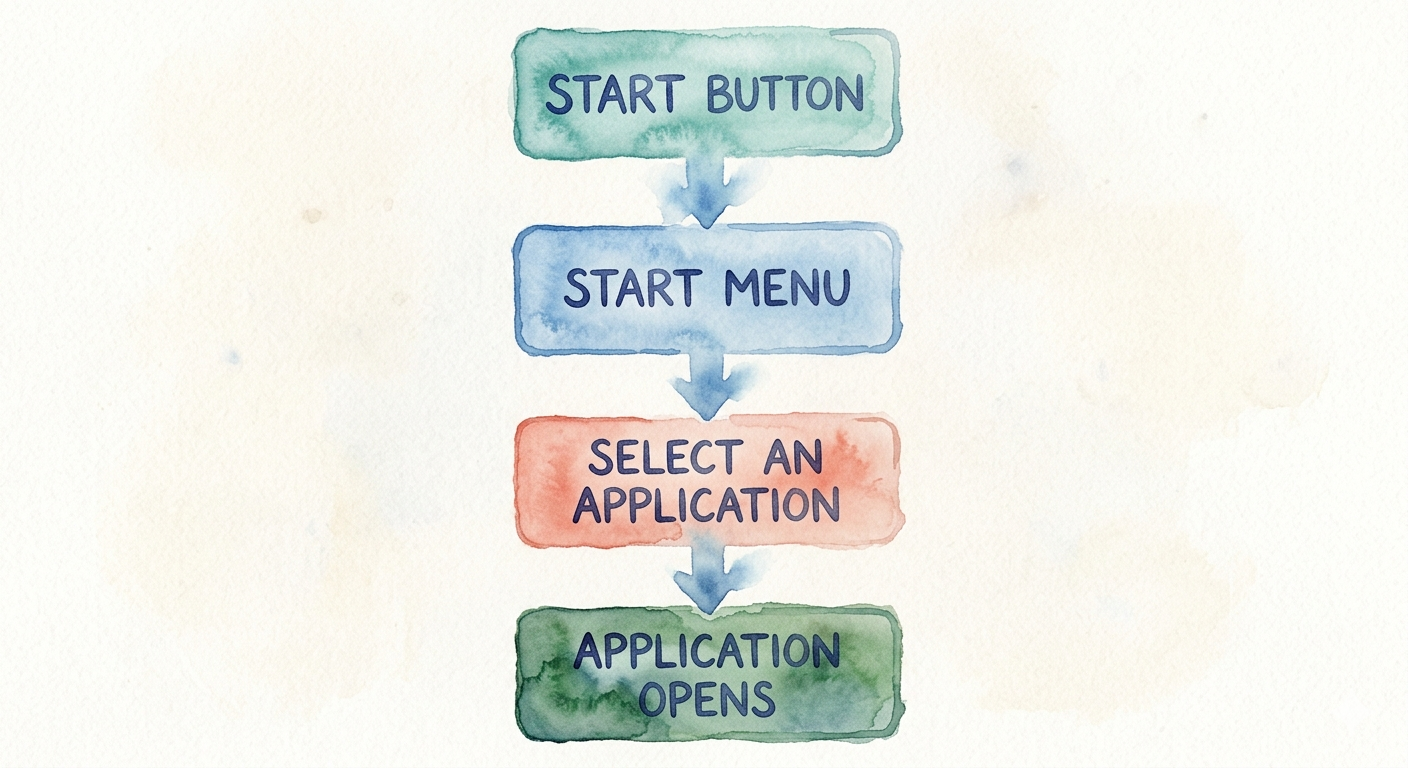
Steps to Run an Application
- Click the Start button.
- Select All Programs/All Apps.
- Click the desired application.
- The application window opens.
Advantages
- Easy to open programs
- Fast access through Start Menu or desktop icons
- Supports multitasking
Disadvantages
- Too many running applications may slow the computer
- Large applications require more RAM
2. Setting System Date and Time
What is System Date and Time?
The system date and time display the current date and time on the computer. They are used for file creation dates, scheduling, internet synchronization, and system operations.
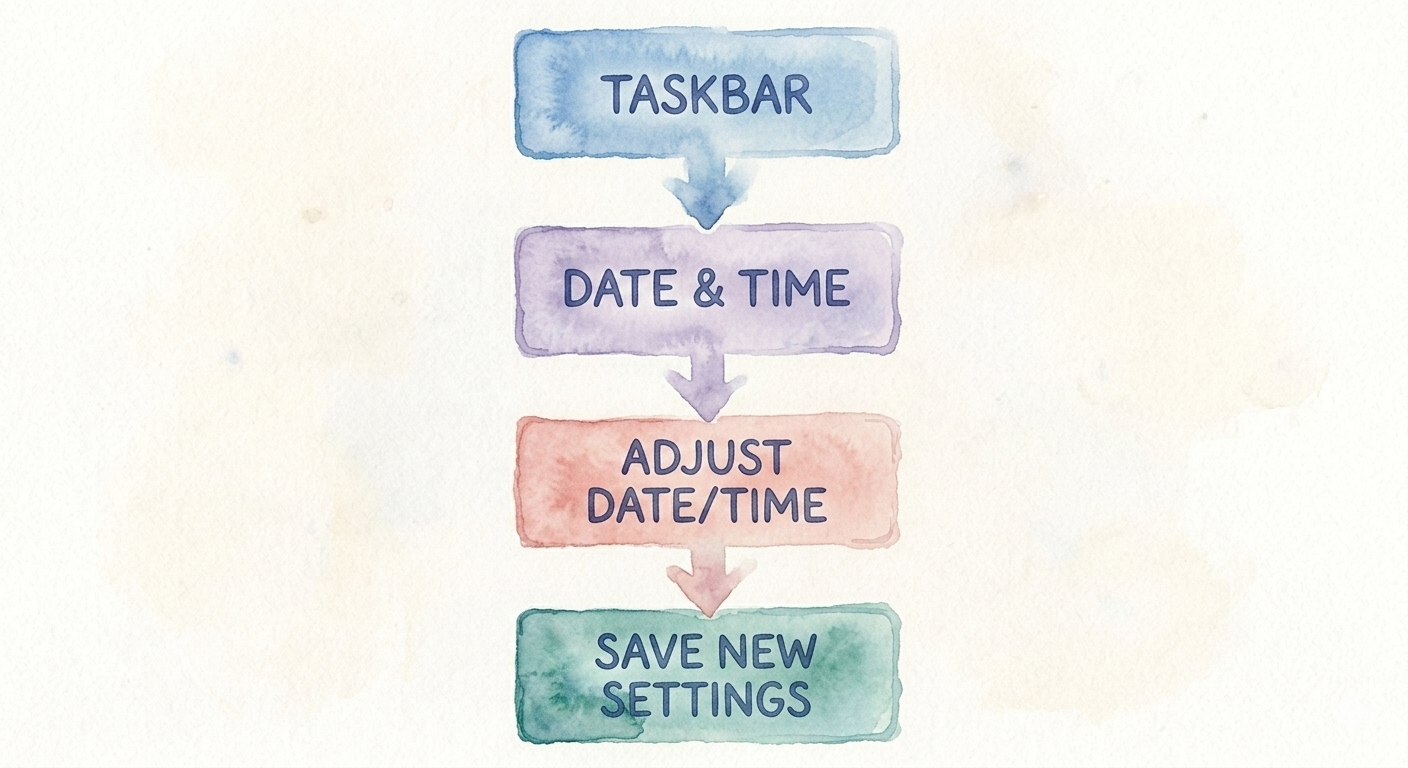
Steps
- Click the Date & Time on the taskbar.
- Select Adjust Date/Time.
- Set the correct date, time, and time zone.
- Click Save (if required).
Advantages
- Displays accurate date and time
- Useful for scheduling
- Helps maintain correct file timestamps
Disadvantages
- Incorrect settings may cause software or internet synchronization problems
- Manual adjustment may be required if automatic synchronization is unavailable
3. Windows Explorer (File Explorer)
What is File Explorer?
File Explorer (formerly Windows Explorer) is a file management application used to browse, organize, copy, move, rename, and delete files and folders.
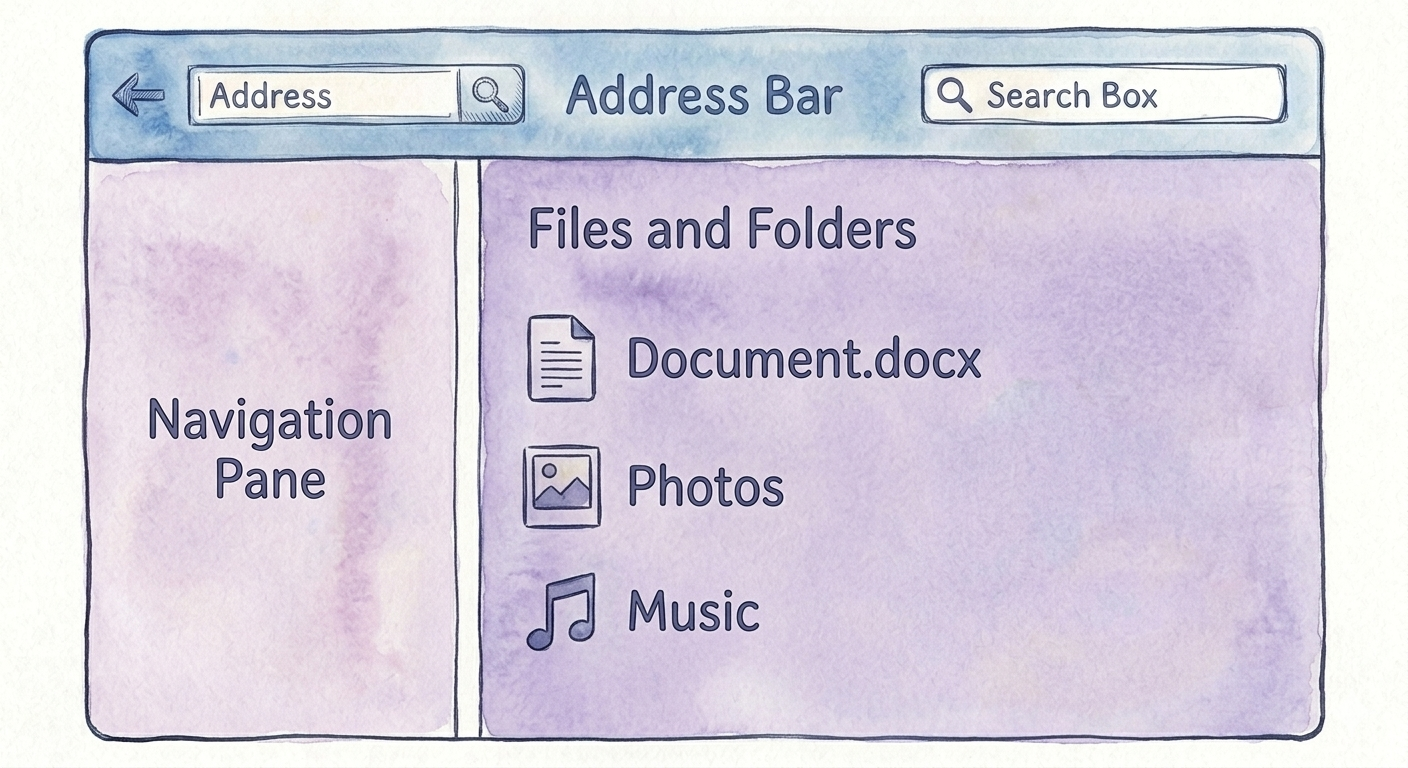
Parts of File Explorer
- Navigation Pane
- Address Bar
- Search Box
- File List
- Ribbon/Toolbar
Advantages
- Easy file management
- Quick search
- Organizes folders efficiently
- Supports copy, move, rename, and delete
Disadvantages
- Accidental deletion of files is possible
- Large folders may take time to load
4. Viewing Files, Folders, and Directories
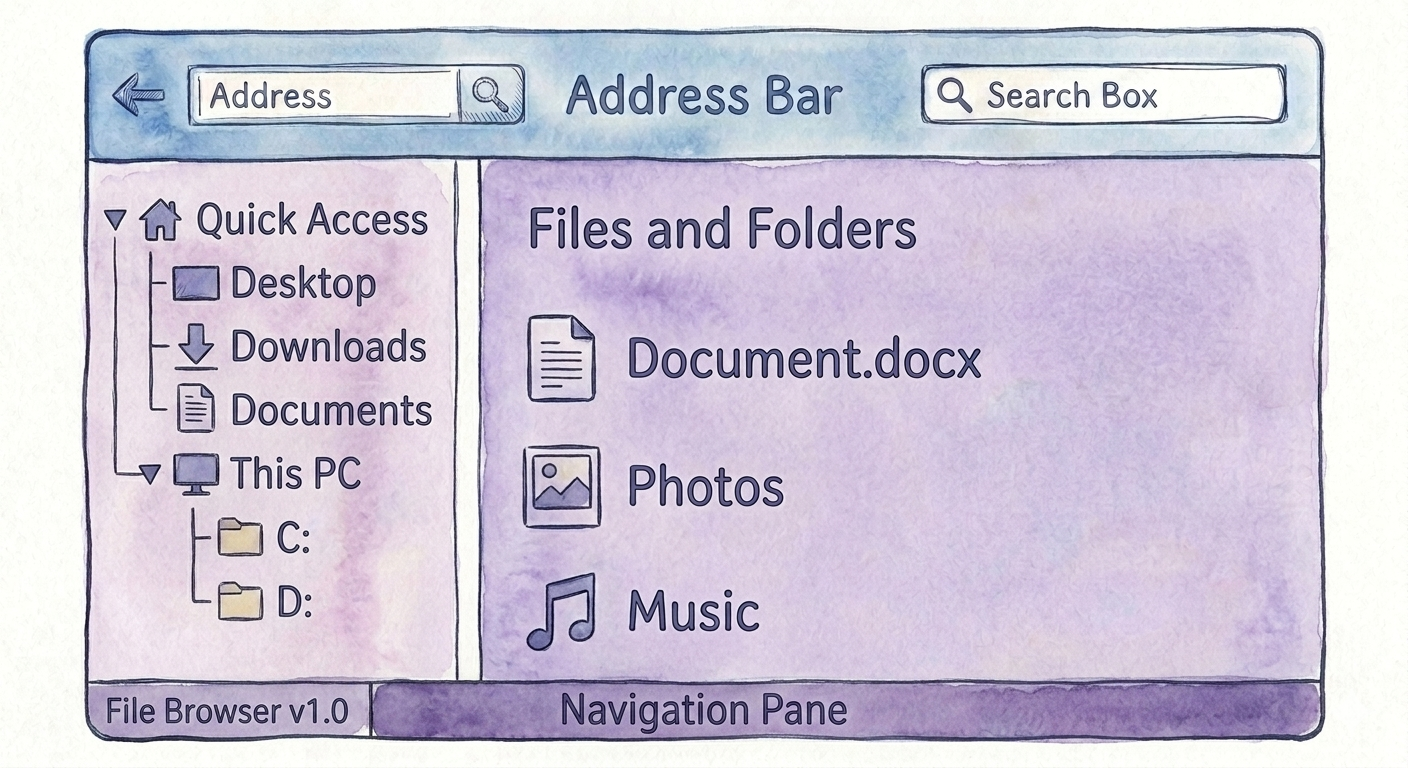
File
A file is a collection of related information stored with a name.
Examples
- Report.docx
- Photo.jpg
- Music.mp3
Folder
A folder is a container used to organize files and other folders.
Directory
A directory is another name for a folder that organizes files on a storage device.
Advantages
- Easy organization
- Faster searching
- Better file management
Disadvantages
- Poor organization makes files difficult to locate
- Accidental deletion can affect multiple files
5. Creating Files and Folders
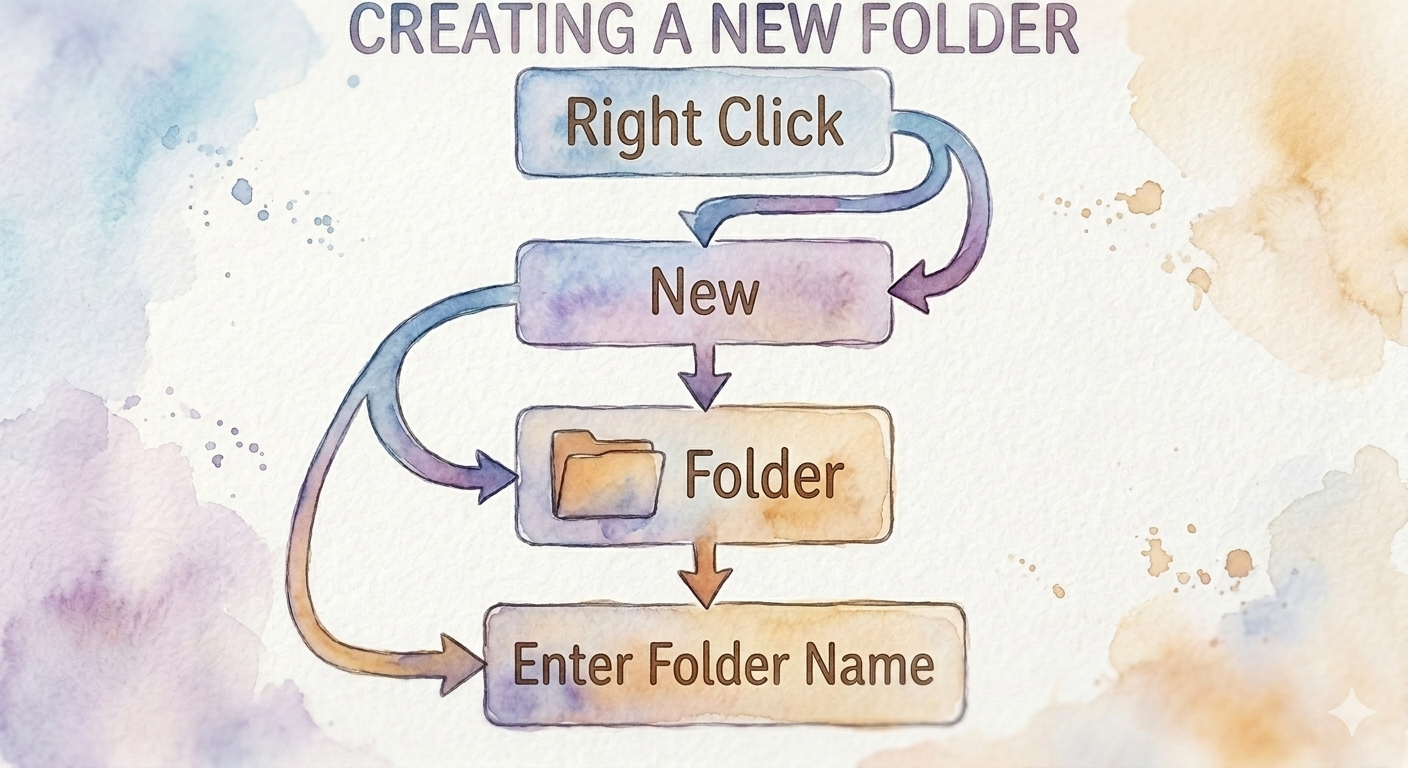
Steps to Create a Folder
- Right-click on an empty area.
- Select New.
- Click Folder.
- Type the folder name.
- Press Enter.
Advantages
- Organizes files neatly
- Easy to manage documents
Disadvantages
- Too many folders may create confusion
- Incorrect naming makes searching difficult
6. Renaming Files and Folders
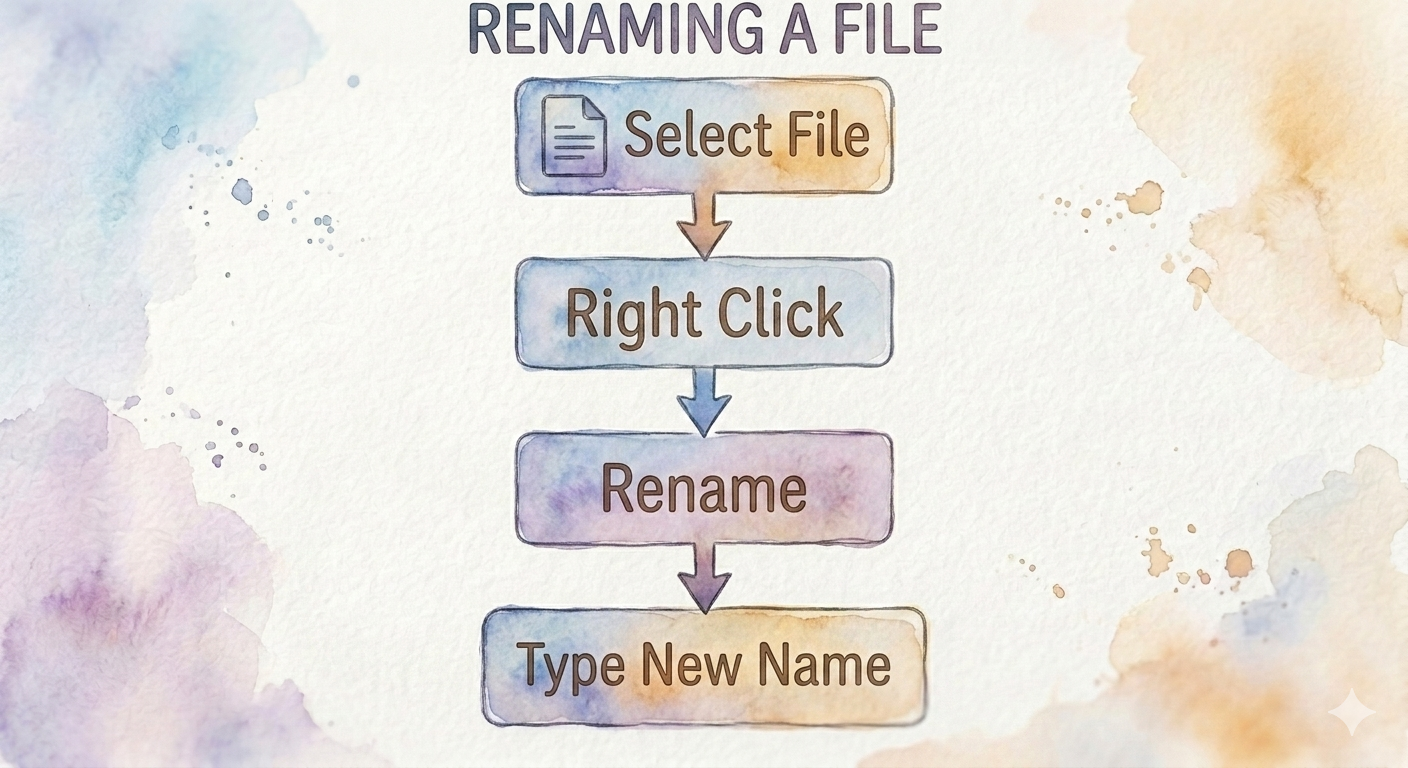
Steps
- Select the file or folder.
- Right-click.
- Click Rename.
- Enter the new name.
- Press Enter.
Advantages
- Better organization
- Easy identification
Disadvantages
- Renaming system files may cause software problems
- Confusing names make files difficult to identify
7. Deleting Files and Folders
Steps
- Select the file or folder.
- Press Delete or Right-click → Delete.
- The item moves to the Recycle Bin.
- Empty the Recycle Bin to delete permanently.
Advantages
- Frees storage space
- Removes unwanted files
Disadvantages
- Important files may be deleted accidentally
- Permanently deleted files are difficult to recover
8. Opening and Closing a Window
Opening a Window
- Double-click an icon.
- Click an application from the Start Menu.
Closing a Window
- Click the Close (X) button in the upper-right corner.
Advantages
- Simple and quick
- Supports multiple windows
Disadvantages
- Unsaved work may be lost if closed accidentally
9. Minimize and Maximize a Window
Every application window has three control buttons.
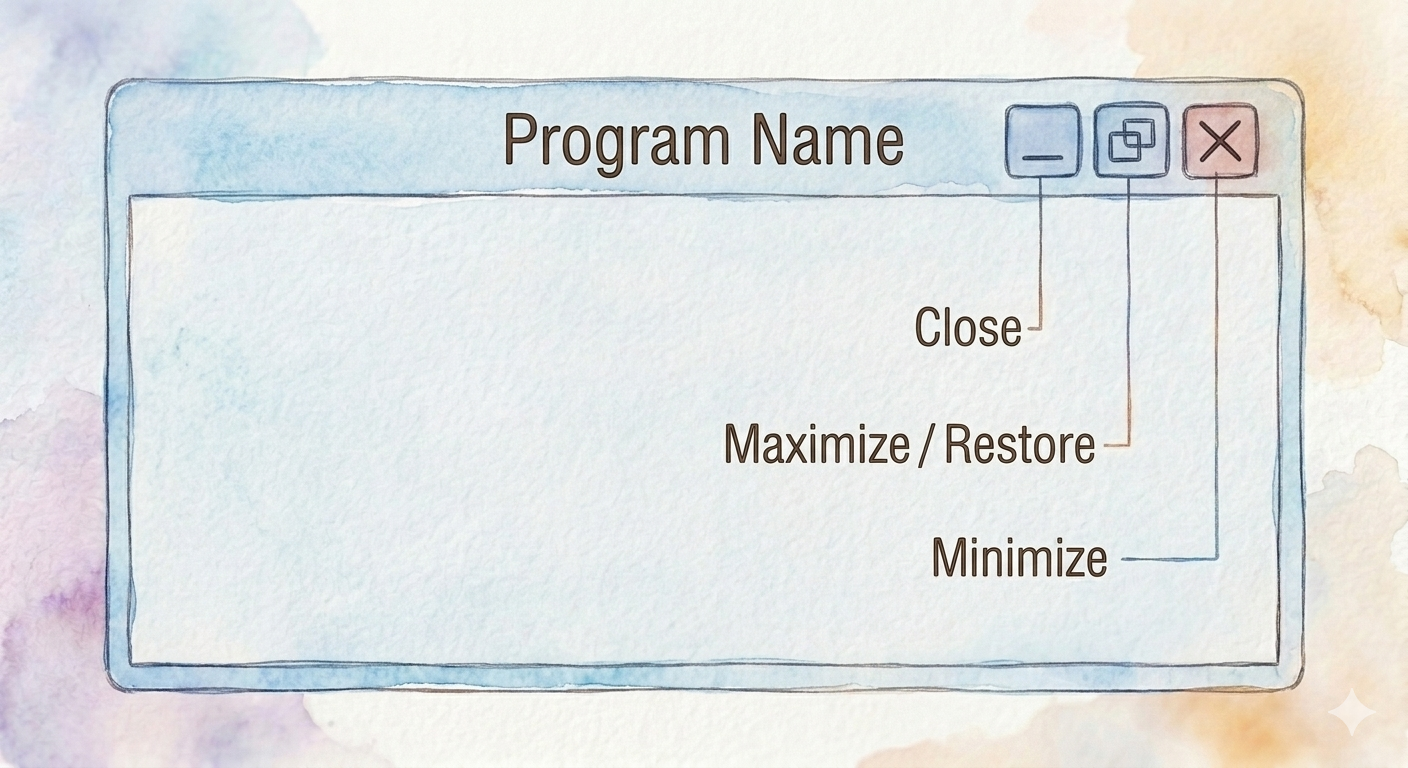
A. Minimize
The Minimize button hides the window and sends it to the taskbar without closing the application.
Advantages
- Keeps the application running
- Reduces desktop clutter
- Easy to reopen
Disadvantages
- Many minimized windows can make the taskbar crowded
B. Maximize
The Maximize button enlarges the window to fill the entire screen.
Advantages
- More workspace
- Easier to read documents
- Better for multitasking with large files
Disadvantages
- Hides the desktop and other windows
- Less convenient when comparing two windows side by side
C. Restore Down
The Restore Down button returns a maximized window to its previous size.
Advantages
- Allows multiple windows to be viewed together
- Easier drag-and-drop between windows
Disadvantages
- Smaller viewing area than maximized mode